Tour of the workspace
The ribbon, properties panel, dockable viewports, table dock, command palette and status bar — what each part of the editor is for.
Getting started 8 min read
The editor is one screen. A ribbon runs across the top, the properties of whatever you have selected sit on the left, viewports fill the middle, tables dock underneath them, and a status bar along the bottom tells you what state the model is in. Every panel except the ribbon and the status bar can be moved, split, stacked or closed.
Every capture on this page is the steel hall example, which opens read-only and without an account, so you can follow along in the real thing.
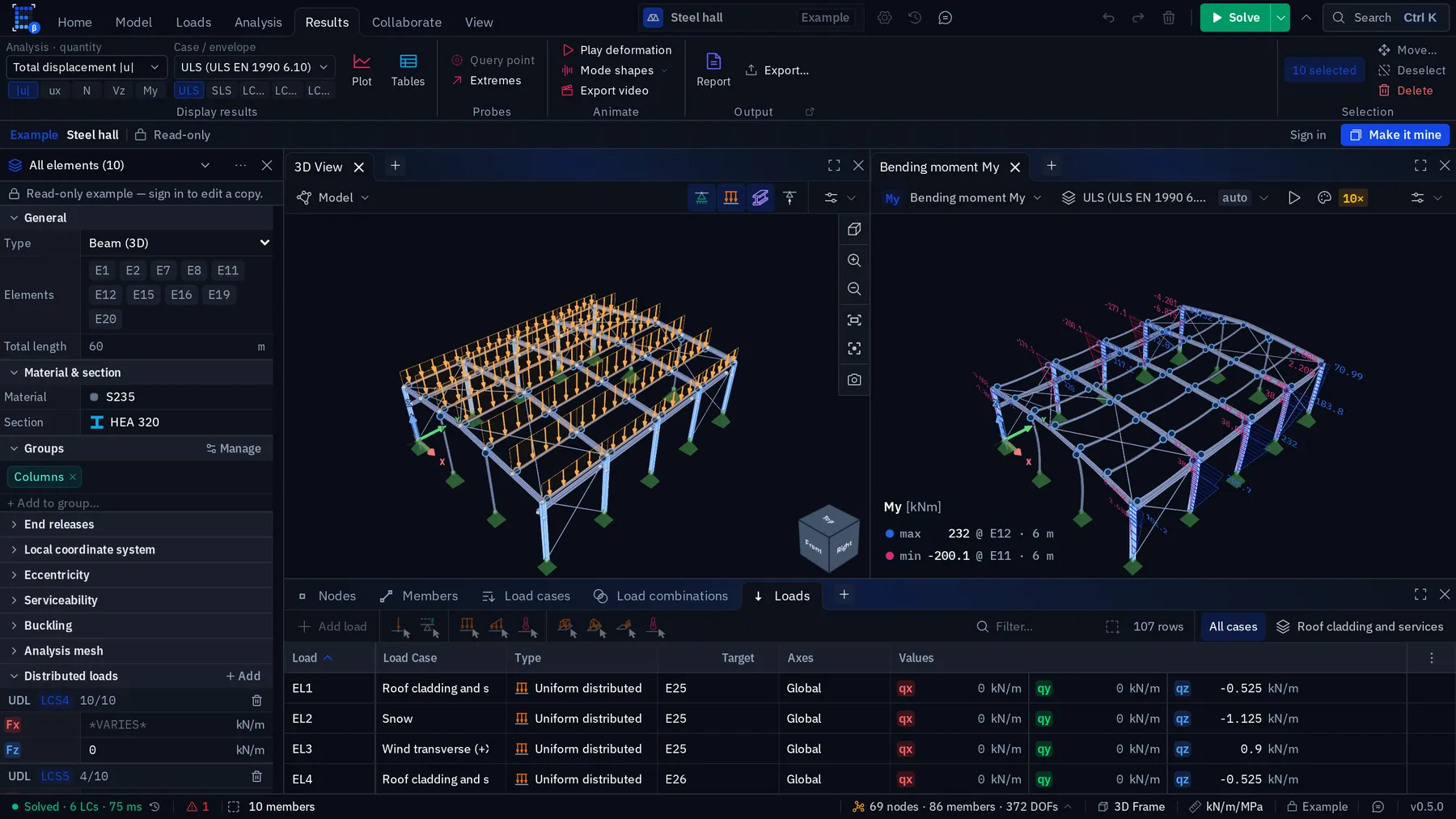
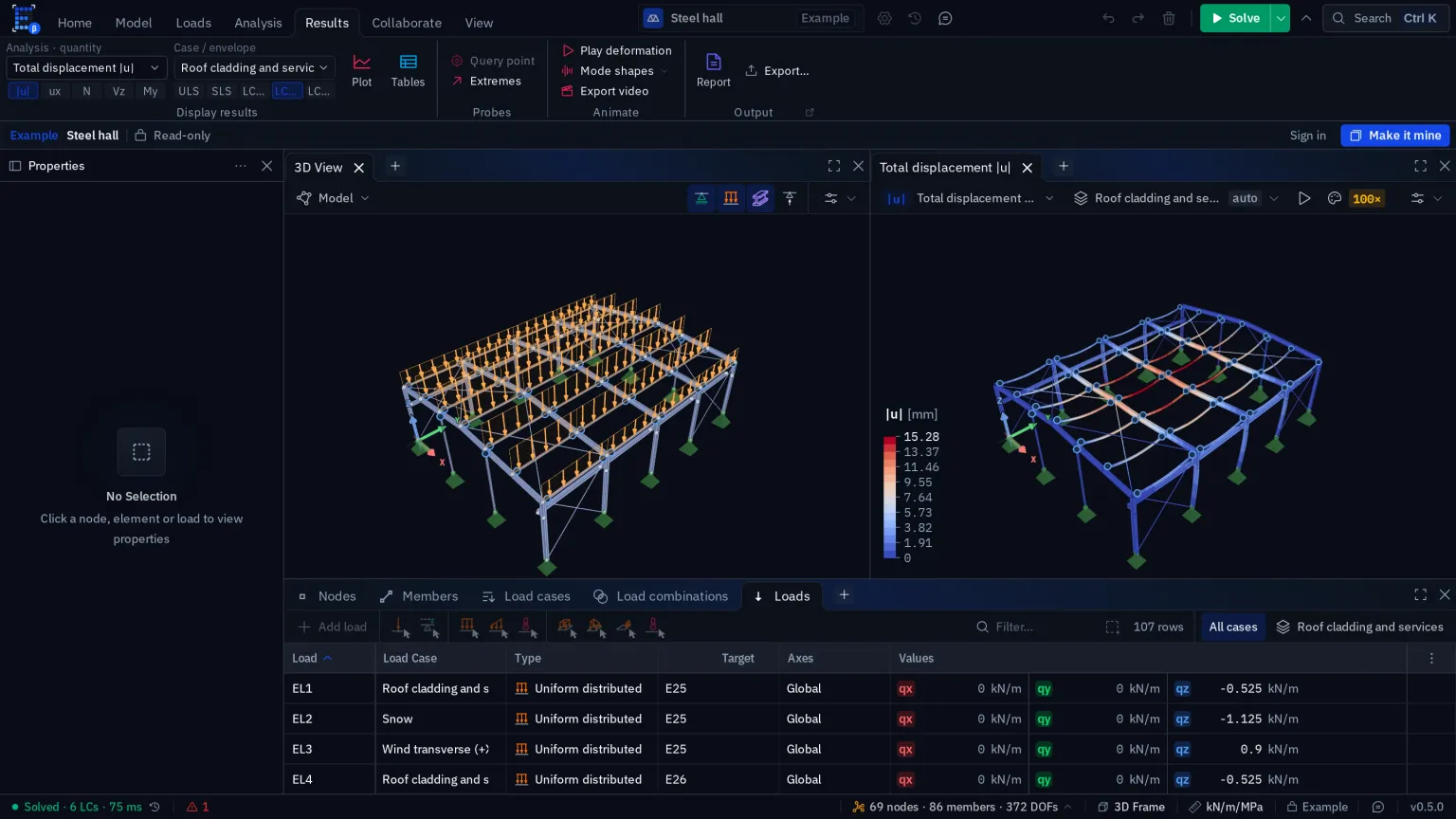
The editor on the Results tab, with a steel hall solved.
- 1Ribbon tabs. Home, Model, Loads, Analysis, Results, Collaborate and View. Each tab swaps the command groups underneath it.
- 2What to show. On the Results tab: the load case, combination or envelope, and the quantity the viewport plots.
- 3Output. Report generates the calculation package from the solved model; Export sends results out.
- 4Solve. Runs the analysis on your own machine. Results appear in every open viewport when it finishes.
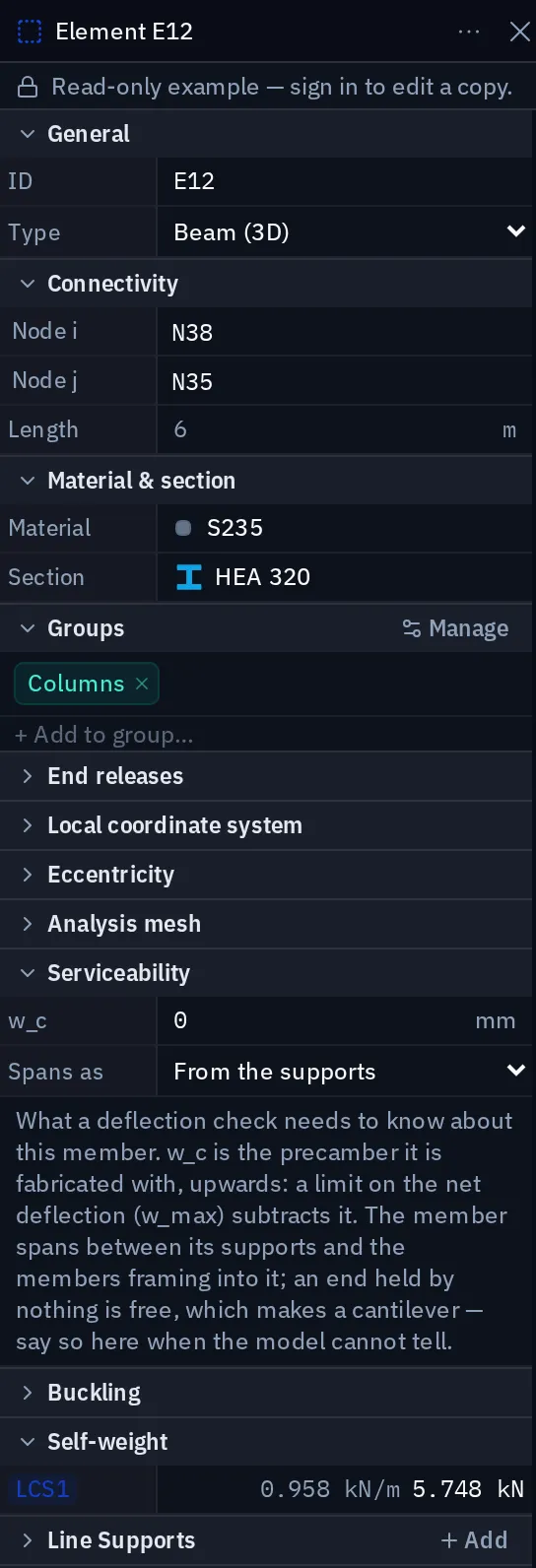
- 5Properties. Whatever is selected, here ten columns at once: type, material and section, groups, end releases, local axes, serviceability, buckling and distributed loads.
- 6Viewport tabs. Each viewport is a tab, and + opens another. Drag a tab to split the space or stack it with another panel.
- 7Per-viewport result. Each viewport picks its own quantity and load case — here M_y under the ULS combination, with its maximum and minimum pinned to the members.
- 8Table dock. Nodes, Members, Load cases, Load combinations and Loads as editable tables. + adds another.
- 9Status. Solve state, number of load cases and the solve time, then issues and the current selection. The solve state opens the solve monitor.
- 10Model and units. Nodes, members and degrees of freedom, the model type and the unit system. Each opens its own settings.
- 11Example and version. An example says so here; in your own projects this is the sync state, saved as you go with no save button. Then feedback and the app version.
The ribbon, tab by tab
Seven tabs, laid out in the order the job runs: Home, Model, Loads, Analysis, Results, Collaborate and View. Each tab swaps the command groups underneath it; the group names run along the bottom edge of the ribbon. Solve sits at the top right, beside the project name, with search (Ctrl K) next to it. Clicking the active tab collapses the ribbon to its tab row; clicking any tab brings it back.
In an example, which opens read-only, the buttons that would change the model — drawing, Generate, the managers, the design checks — are greyed out until you copy it into your own project with Make it mine.
Home
The tools you use most while modeling — selection, drawing, supports, loads and the section and material library — so that the ordinary loop never leaves one tab:

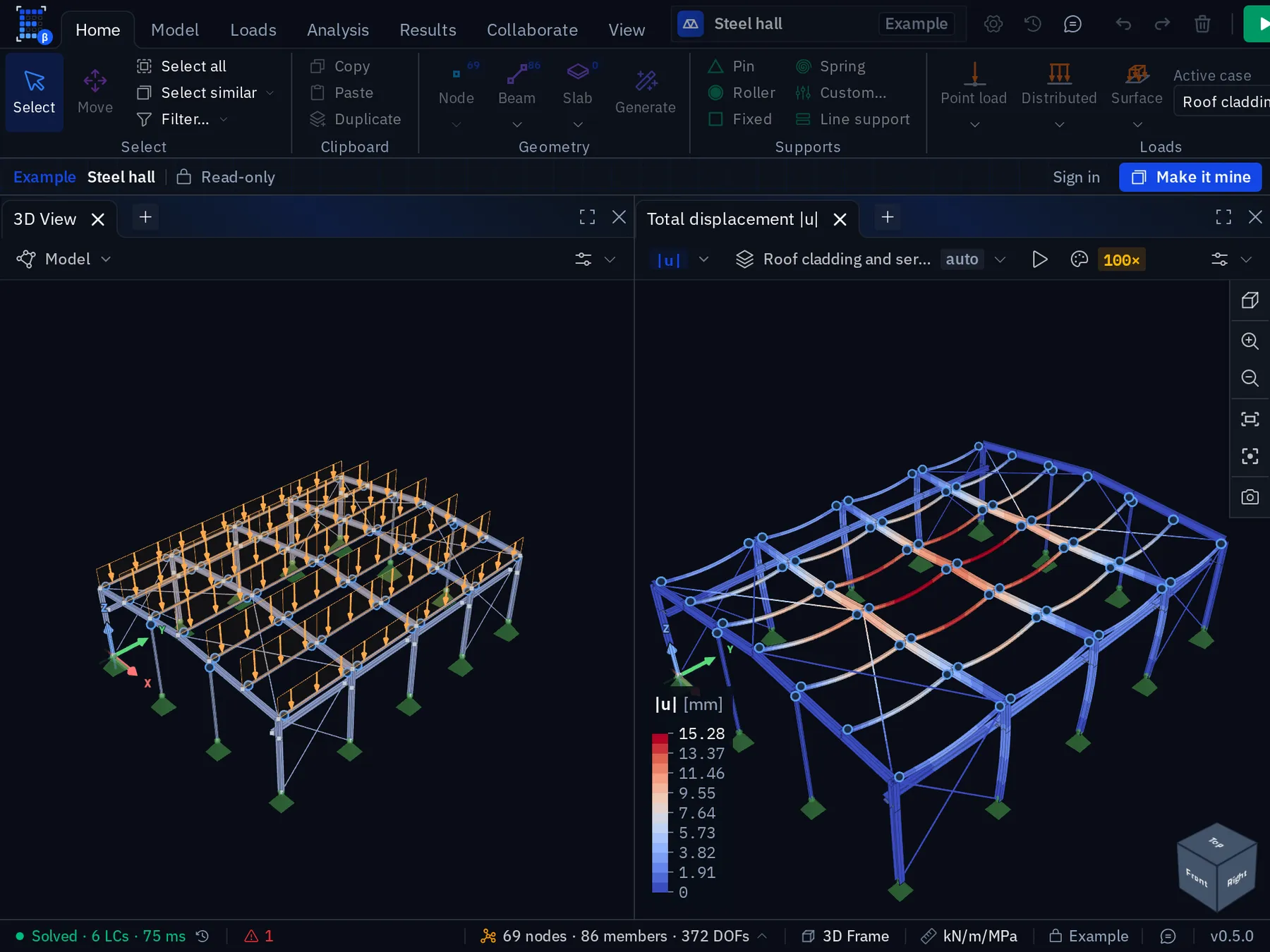
The Home tab, with the steel hall example open read-only.
- 1Geometry. Node, Beam and Slab: the three things you draw. The small counters show how many of each the model holds.
- 2Supports. Pin, Roller, Fixed and Spring presets, a Custom support for any mix of the six directions, and Line support.
- 3Loads. Point, distributed and surface loads, applied to the active load case chosen beside them.
- 4Generate. Whole structures from a few dimensions — trusses, portal frames, arches, grids, towers, domes and shells — inserted into the model. Greyed out here because an example is read-only.
- 5Make it mine. An example opens read-only. This copies it into a project on your account, ready to edit.
- 6Loads on the model. Applied loads are drawn on the members they act on, labelled, in the active load case.
- 7Result viewport. u
- 8Deformation scale. The deformed shape is exaggerated for visibility (100× here). Read displacements off the legend or a table, never off the picture.
- 9Legend. The contour scale with units. Blue is the smallest value, red the largest.
Generate builds a whole structure — a truss, a portal frame, an arch, a dome, a silo — from a few dimensions and drops it into the model. See Structure generators.
Model
Everything about the structure itself. What Home does not carry lives here: releases and rigid arms under Connectivity, groups under Organize, the larger edits — merge nodes, align, a node grid — under Modify, and the mesh settings and the model check under Mesh & checks.

Loads
Applying loads on the left, the load cases, combinations and groups on the right, with the active case — the case new loads land in and the viewports draw — between them. Masses for modal analysis are here too, because a mass is placed like a load and is not one. Generators writes whole sets of load cases for you: wind and snow to EN 1991, and load panels that hand a floor or roof pressure to the beams.

Analysis
Run, choose the analysis type, run the design checks. The four analyses that ship are Linear static, Second order (P-Δ), Modal and Linear stability; the counter on each is how many setups of that kind the project holds. Under Design checks, Checks opens the check manager; Strength and Serviceability open the project's check of that kind, or start one — see Serviceability checks — and Buckling lengths opens a table of the lengths and factors each member carries.

The arrow beside Solve opens the solve options: auto-solve re-runs the linear static analysis after every edit, so a frame of ordinary size is re-solved as you model, and the other analyses are run on demand from the same menu or with F5.
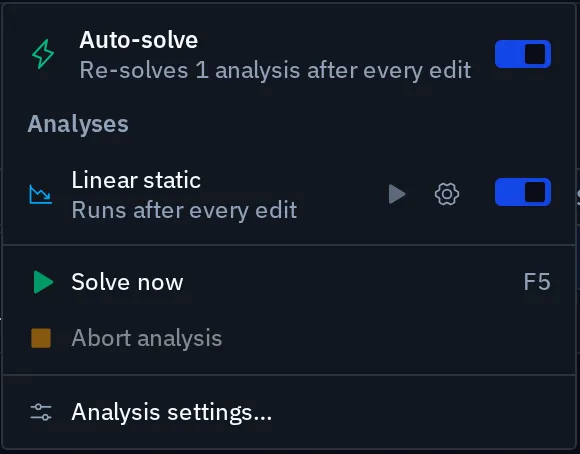
A solve that takes longer than a moment opens the solve monitor beside the model: the load case being solved, the iteration, a convergence chart and a Stop button.
Results
What to show and where to read it. The Analysis · quantity picker chooses what is plotted — chips underneath it for the quantities you switch between most — and the Case / envelope picker chooses which load case, combination or envelope. Plot opens a viewport with that selection; Tables opens the matching result table in the dock. Extremes ranks every member by its worst value. Animate plays the deformed shape, a mode shape or a mechanism in every open results viewer, and records a 3D viewer to video. Report generates the calculation package and Export… sends result tables out.

Collaborate
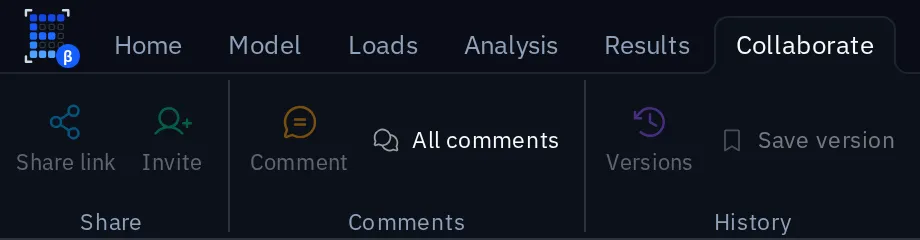
Three groups: Share (Share link, Invite), Comments — comments pinned to the model, and the list of all of them — and History, the project's version history and Save version. See Sharing a project for what sharing does.
View
Viewports and panels, the camera, and how the model is drawn. Shaded, Wireframe and X-ray change every open viewer; Fit, Center and the standard views move the camera; Screenshot captures a viewport as an image.

The properties panel
Selection-driven. Select one member and you edit that member; select twenty and you edit the properties they share, leaving the rest untouched. This is the fastest way to reassign a section across a whole group.
For a member the panel is grouped into general properties, connectivity, material and section, groups, end releases, the local coordinate system, eccentricity, the analysis mesh, serviceability, buckling, self-weight, line supports and distributed loads. Collapse the groups you are not using.
Keyboard-first modeling
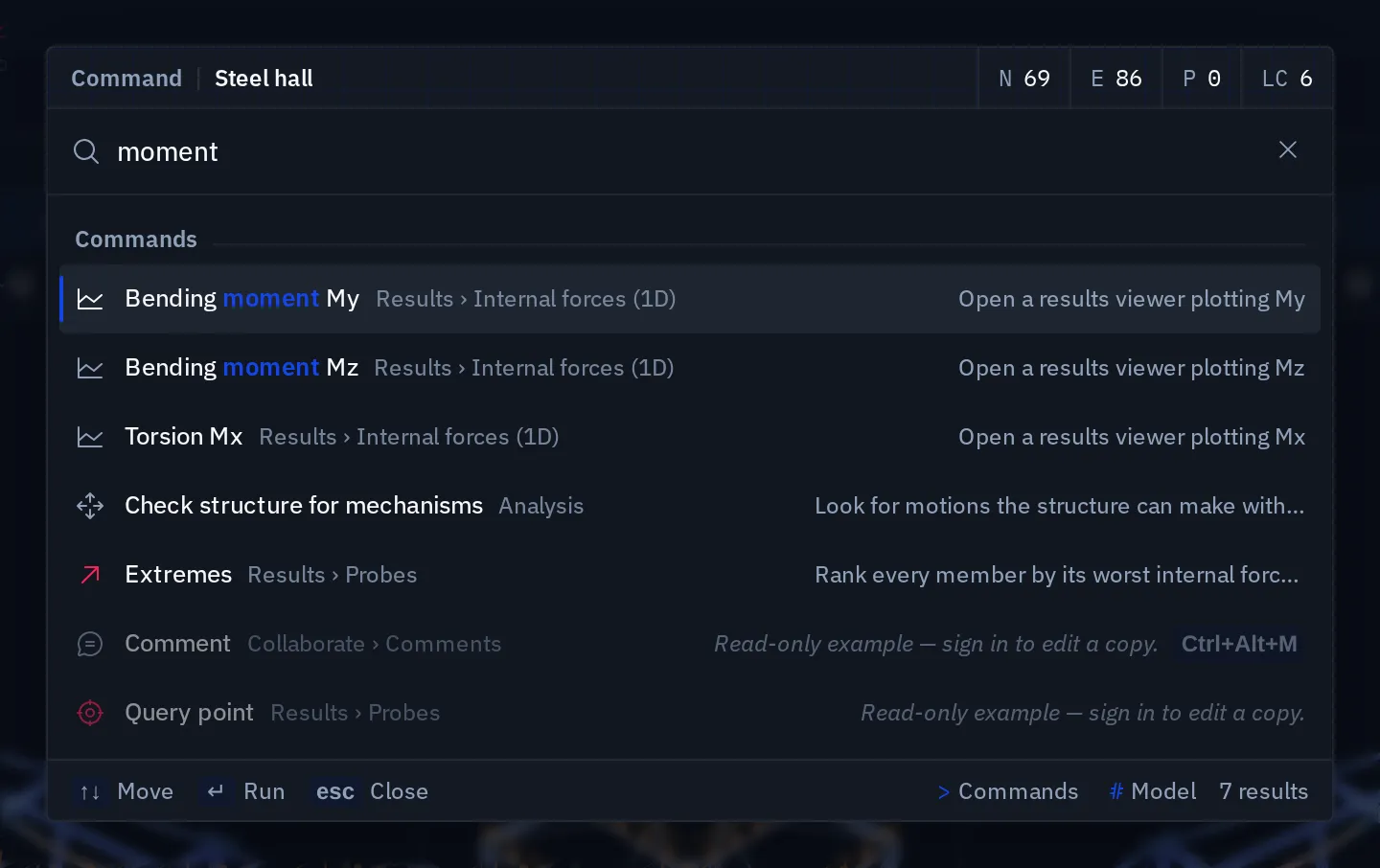
The intended rhythm is: pick a tool, draw with snapping, confirm, repeat. Ctrl K opens the command palette, which searches every command by name and says where it lives in the ribbon, so a tool you cannot find is two keystrokes away. F5 solves, F1 opens the key sheet, and the editing, window and file commands have the bindings you would guess; the full list is in Keyboard shortcuts. There are no single-letter tool keys.
Viewports
Each viewport is a tab with its own content: the model, or one result quantity for one load case or combination. Open another with + and put a different quantity in it — the model beside its bending moment, deflection beside a mode shape — all from the same solve.
The viewport's own toolbar holds its selection. The first control picks what is plotted: the model geometry, or one of the solved analysis's result families — the deformed shape, internal forces on members, internal forces on surfaces, the error estimate, or the design checks — each opening to its quantities. The second picks the load case or combination; it follows the ribbon's choice until you pin the viewport to a case of its own. The third sets the deformation scale.
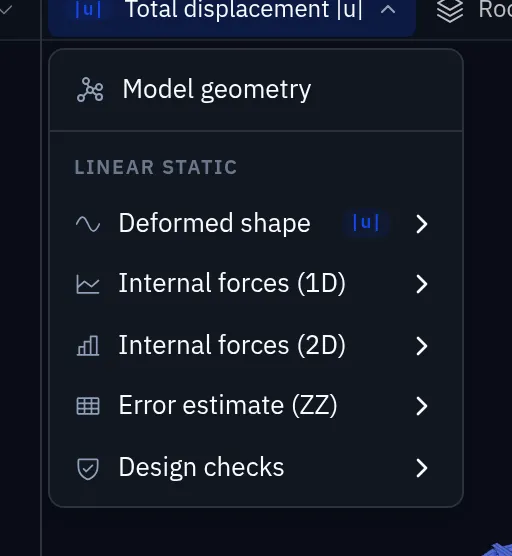
Every number on screen belongs to that viewport's selection. Before you copy a value into a calculation, read the quantity and the load case off the viewport's own toolbar.
The deformed shape is exaggerated so it can be seen, and the viewport says by how much. Read a displacement off the legend or a result table, never off the picture.
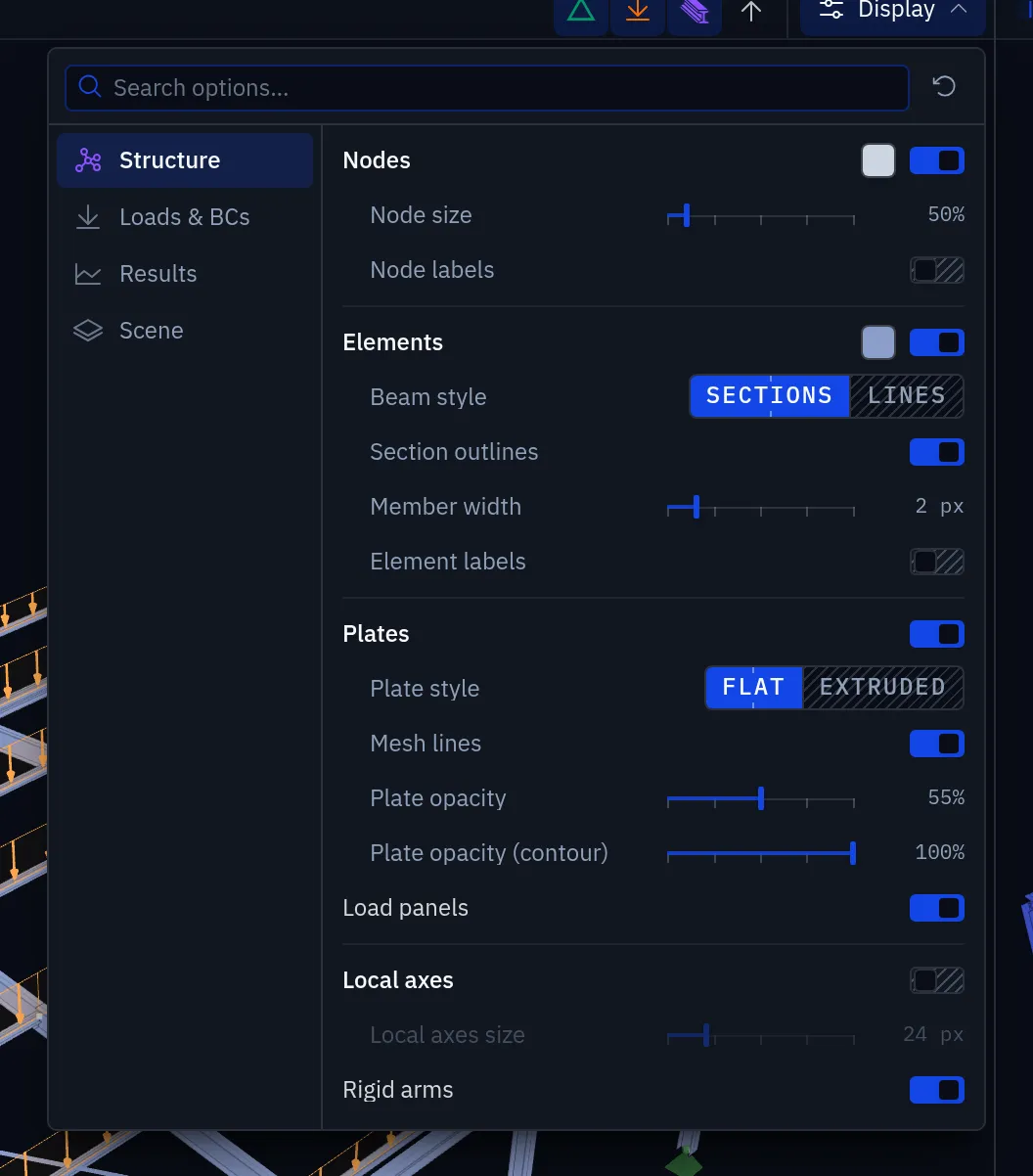
Display opens what the viewer draws: node and element labels, sections as outlines or extruded shapes, mesh lines on plates, plate opacity, load panels, local axes and rigid arms, with the same for loads and results on their own pages.
Docking
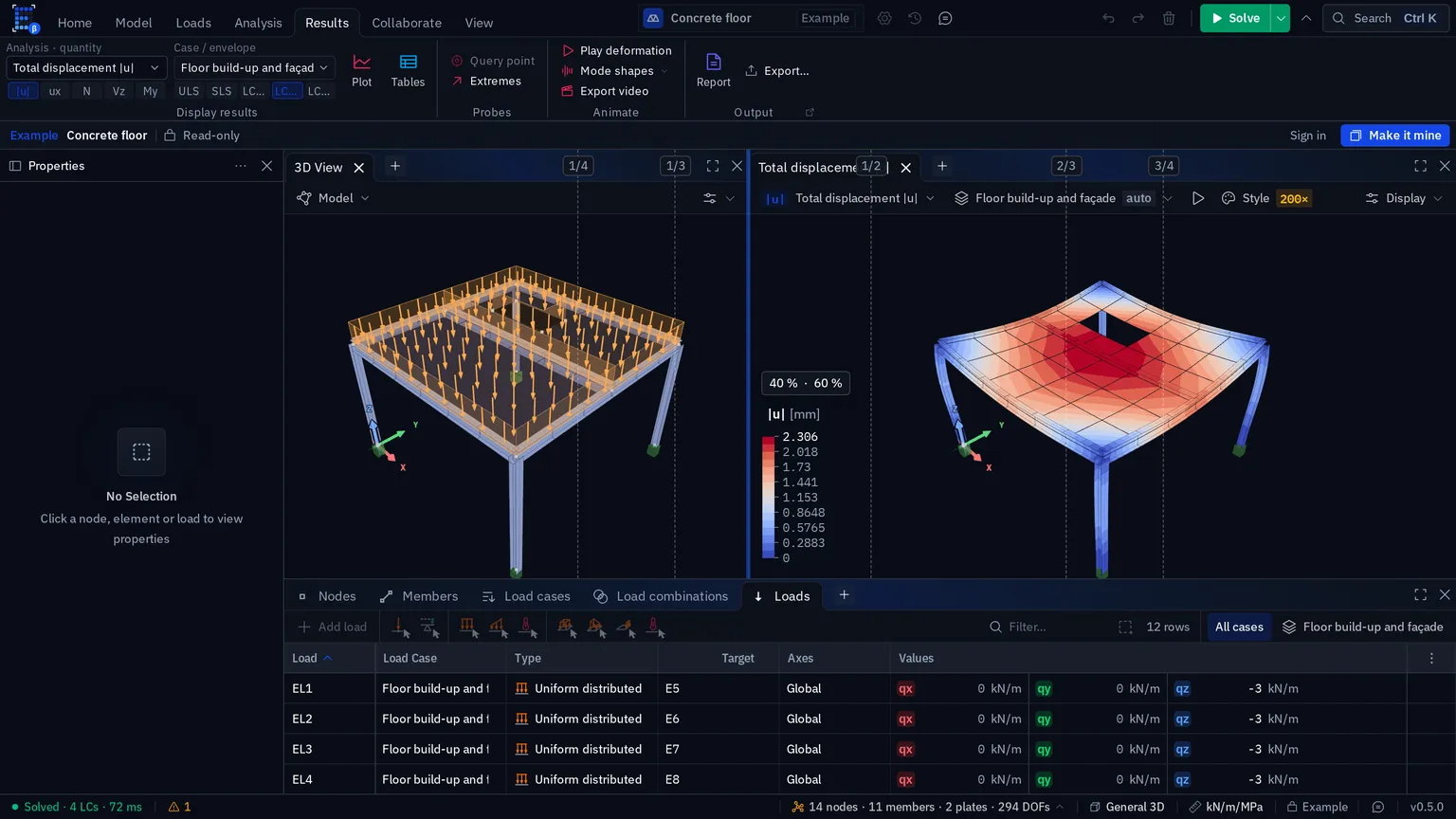
Every panel is dockable. Drag a tab against the edge of another panel to split the space, or onto its middle to stack the two as tabs; drag the splitters to resize. The table dock under the viewports holds nodes, members, load cases, load combinations and loads as editable tables, and + adds another. Result tables — nodal, element, reactions, extremes, design checks — dock in the same place.
Splitters snap. Drag one and dashed guides appear at a quarter, a third, a half, two thirds and three quarters, with a line where the two neighbours would be equal; the split is read out beside the cursor, and Alt drags freely. Dropping a panel onto a pane labels the share it will take.
The status bar
The status bar, left to right:

| Part | What it tells you |
|---|---|
| Solve state | Solved or not, how many load cases were solved and how long the solve took. It fills up while a solve runs, says Meshing… while the mesh is rebuilt, and its menu opens the solve monitor |
| Issues | Problems the model check found. Read them before believing a result |
| Selection | What is currently selected, when anything is |
| Counts | Nodes, members, plates and the degrees of freedom; open it for the full breakdown |
| Model type | 3D frame, general 3D, a plane model — click it for the model settings |
| Units | The unit system the model is displayed in; click it to switch presets — see Units |
| Sync | Whether every edit has reached the server. An example shows Example here instead |
| Version | The app version — worth quoting in a bug report, next to the feedback button |
Results
Once solved, the Results tab chooses what the viewports show:
- Diagrams on beams and bars — N, V, M plotted along the member.
- Contours on slabs, walls and shells.
- Deformed shape, with an adjustable exaggeration.
- Tables of nodal and element results and reactions.
Its Output group generates the calculation report from the solved model. See Reading diagrams for the conventions, and Sign conventions for what positive means.
On a phone
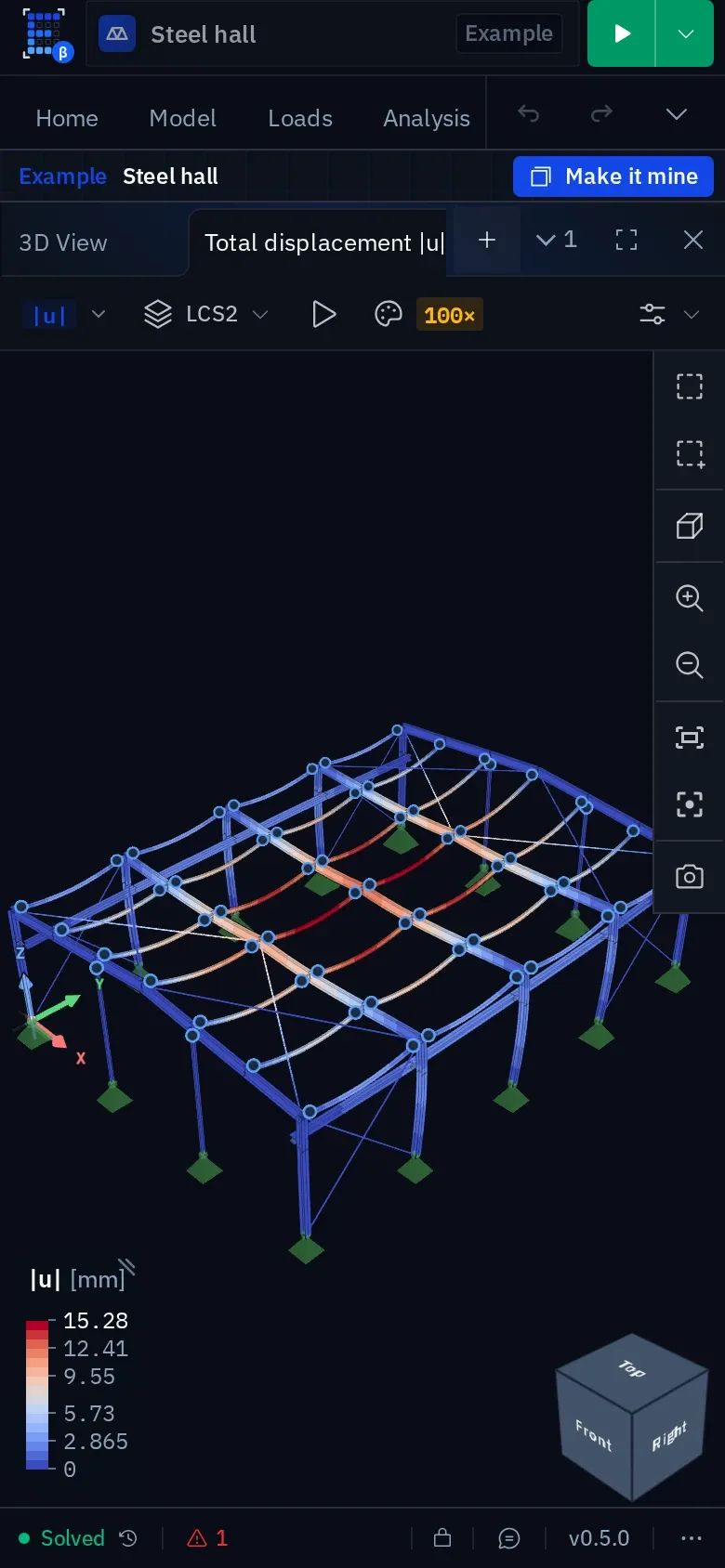
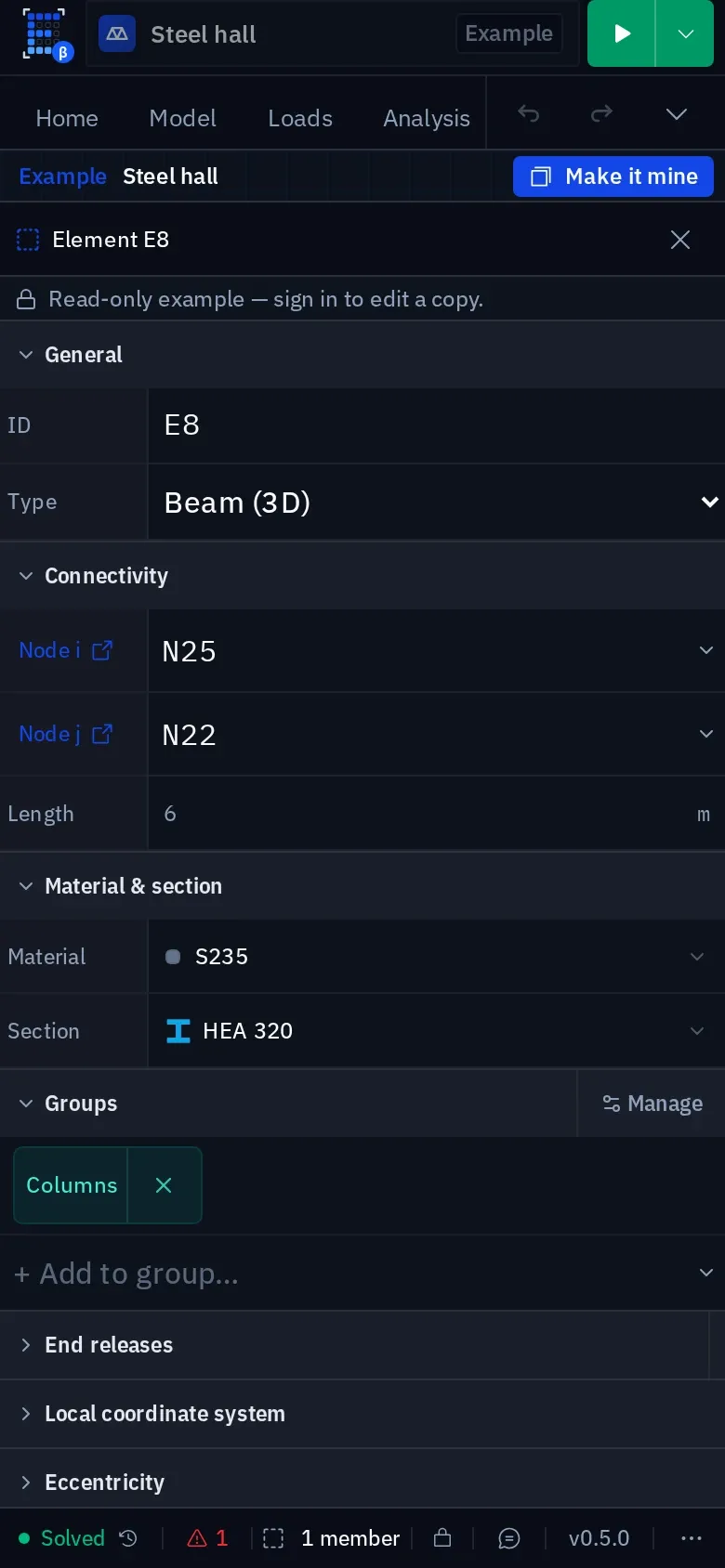
The same editor, with the panels stacked instead of side by side. The ribbon tabs scroll, the two viewports become tabs of one pane, and the status bar keeps the solve state and the issue count. The Properties panel opens as a sheet with thumb-sized rows; lists open without bringing up the keyboard, number fields select their value when tapped, and the Android back gesture closes the sheet. While you type, the ribbon, the status bar and the solve monitor step aside so the field stays in view. See Working across devices.
Saving
There is no save button. Every change is recorded as it happens and synced; the status bar says when it has been. If the connection drops, editing continues locally and merges when it returns (Working offline).
There is a file, though: File › Save as (Ctrl S) writes the whole project as an
.elproj file, and File › Open (Ctrl O) reads one back into the current project. It
works on every plan. To go back to an earlier state of the project itself, use
version history: checkpoints are taken as you work,
and Save version keeps the current state under a name. An .elproj is the copy that
lives outside the project; see
Import & export formats.
Something wrong or unclear on this page? Tell us, and it gets corrected.