Report formats
The report typeset as a PDF with a live preview, as PDF/A-2b for archiving, or as an editable Word file, in English or Czech.
Results & reports 11 min read
The report is typeset by Typst inside the app. The preview in the report dialog is Typst's layout of the document, page by page, and Download PDF and Print write that same layout as a PDF file. What you check in the preview is what leaves the app. There is no browser print dialog in between.
The same document can also go out as an archival PDF/A-2b or as an editable Word file. Calculation sheets and result diagrams use the same engine and the same formats.
What goes into the report, chapter by chapter, is on Exporting a report. This page covers the dialog and the files it writes.
Opening the report dialog
File › Export › Calculation report…, Results › Output › Report, or Ctrl P. Ctrl P opens the report dialog, not the browser's print dialog.
The dialog
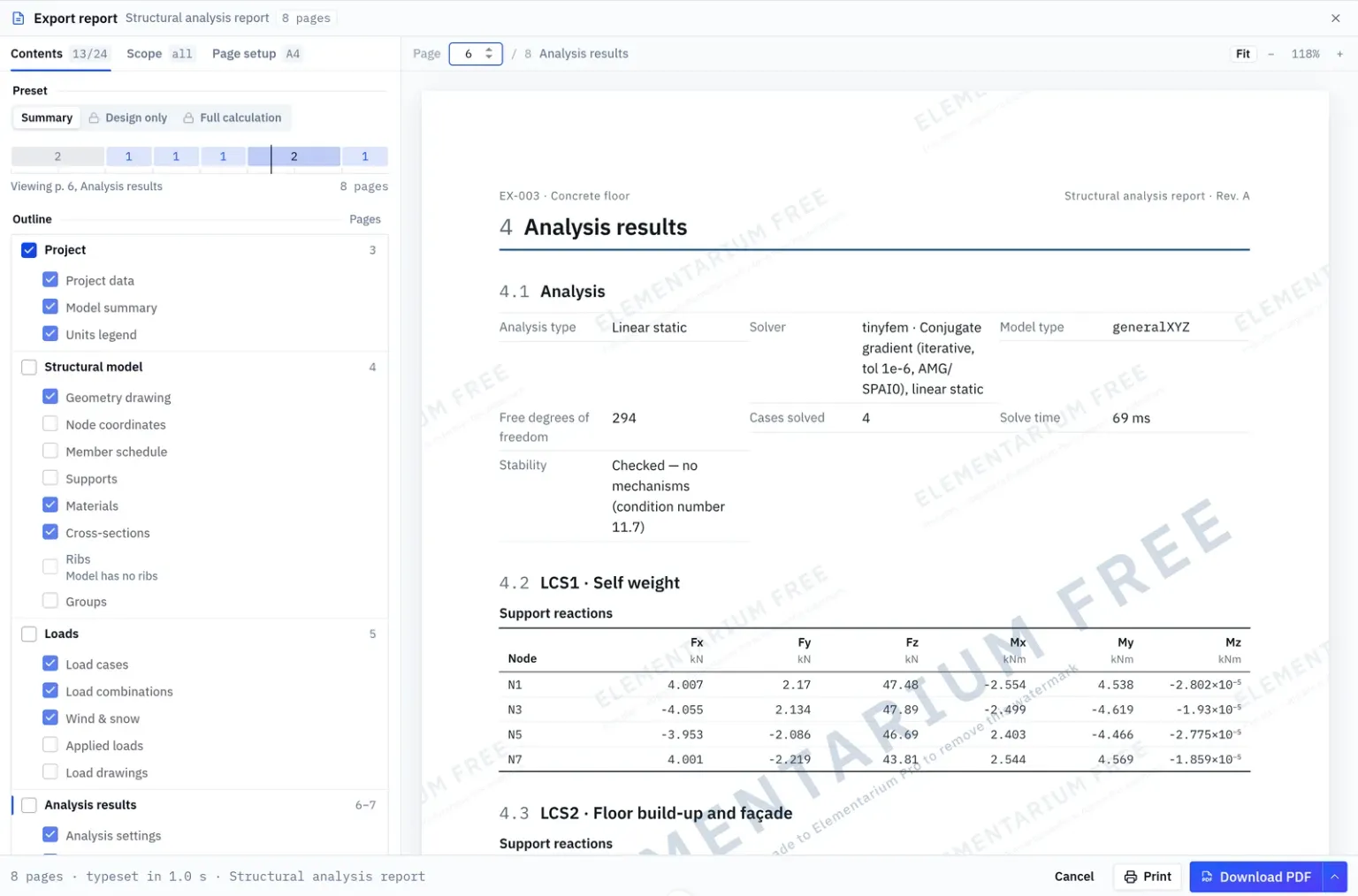
The settings are on the left, in three tabs, in the order a report is usually settled. Each tab shows its state in a small chip: how many sections print out of how many can, whether the scope is all or filtered, and the paper size. The preview is on the right. The bar at the bottom gives the length in pages, how many pages the last change added or removed, and how long the typesetting took.
The settings are stored in the project. Everyone working in it sees the same report setup, and exporting again after a model change gives the same report with the new numbers.
Contents
- Preset: Summary, Design only or Full calculation. Ticking or unticking a section by hand turns the preset into Custom.
- The page map: a strip as wide as the whole document, with one extent per chapter, as long as the pages it takes. See The page map.
- Outline: the five chapters and their sections, each chapter with its page range in the preview. Click a range to go there. A section that has nothing to print is greyed out and says why, for example Model has not been solved yet or Model has no ribs.
Under Result drawings, chips choose which internal-force components every member diagram draws. The default is , and .
Scope
- Load cases, Load combinations and Design checks: lists of ticks. With every box ticked the count reads all, and a case or combination added later is in the report without a visit to the dialog.
- Members › Covers: Whole model, or Groups only with the groups ticked below.
- Verification detail: Breakdown for (Governing combination, Failing members or Every combination) and Hand calculations (Governing clause, Every clause or None).
- Units in formulas: the unit beside every number put into a formula. Off, the formula shows numbers only, and only the result keeps its unit.
- Member force axes: Member (y, z) or Principal (u, v), for tables and member diagrams. Only angle profiles read differently, because their principal axes are turned off the axes they are drawn in.
These two detail settings change the length more than anything else. Every combination with every clause derived runs to hundreds of pages on anything but a small model, and the dialog warns when both are set.
Page setup
| Group | Settings |
|---|---|
| Paper | Size (A4 or Letter), Orientation, Margin (8 to 40 mm, 18 mm by default), Language |
| Tables and drawings | Rows per table (400 by default; the rest is summarised as "n more rows"), Model view (Isometric, Front, Side or Top) |
| Page furniture | Title page, Contents, Running header, Page numbers, Watermark (your own text, such as DRAFT) |
| Title page | Report title, Revision, Logo (PNG, JPEG or SVG under 512 kB), Notes |
| Output | PDF/A-2b |
Project name, number, client and author are not set here. The title page reads them from Project settings › Project, so the report cannot disagree with the project.
The page map
The strip on the Contents tab draws the report to scale. The front matter (title page and contents) is drawn grey and each chapter in colour, with its page count written in where there is room. A vertical tick marks the page the preview is showing. Click an extent and the preview jumps to that chapter's first page. Pointing at a chapter in the strip or in the outline highlights it in both.
A long report usually comes from one chapter, and the strip shows which one. Over 250 pages, the bottom bar says a long report — check the scope.
The preview
The preview fits the page to the width of the pane. Fit, − and + set the zoom, and the page field goes to a page. Entries on the contents page jump to their page. Member and node ids in tables and derivation titles are links: click one and the dialog closes with that member or node selected in the model. These links exist only in the preview, not in the PDF.
Two notices can appear:
- Above the pages: The model has changed since the last solve — results in this report are out of date. Solve again before you export.
- Above the settings: open blocking comments, with Show to go to them.
A long report shows its first pages within seconds, then says Typesetting the rest… while the whole document is laid out. Until it is done, the contents list only those first pages and the footers carry no final total. Print and Download PDF wait for the whole document. A changed setting does not lay everything out again, so the preview updates sooner on a long report.
How formulas and diagrams read
A hand calculation puts its numbers into each formula with a dot between them, writes a squared length with its unit, as for , and gives the clause on its own line under the formula. A member diagram names each plot on one line, N kN, and strikes a zero through a force that is zero along the whole member.
Download PDF saves the file. Print opens it in the browser's own PDF viewer in a new tab, and you print from there. If the browser blocks the new tab, the PDF is downloaded instead.
The figures are vector drawings and the fonts are embedded. Right after a preview most of the layout is already done, so the file is written quickly.
PDF/A-2b for archiving
PDF/A is the ISO 19005 format for long-term archiving. Document archives and building authorities often ask for it.
Page setup › Output › PDF/A-2b switches it on. Download PDF and Print then write PDF/A-2b. The preview does not change. The setting is saved with the rest of the report setup.
What PDF/A-2b gives you:
- every font embedded in the file,
- colour defined independently of the screen or printer it is shown on,
- the document's metadata in the file, dated when the report was generated,
- no reference to anything outside the file.
Conformance level b means the file will look the same when it is opened years later.
What it does not give you:
- A signature. PDF/A says nothing about who issued the file or whether it has been changed since. If the authority asks for an electronic signature or seal, apply it to the exported file with your signing tool.
- Accessibility. Level b does not include the tagged document structure that PDF/A-2a requires.
- Acceptance by a particular office. File names, size limits and signature requirements are the office's rules, not part of the format.
The archival file is typeset by a second engine, loaded the first time you ask for PDF/A, so that export takes a few seconds longer. A line can break slightly differently from the preview. The content is the same.
The second engine needs a recent Chrome, Edge or Firefox. In a browser that cannot run it, the export says so; switch PDF/A-2b off to export a standard PDF.
Word (.docx)
The caret next to Download PDF opens the other format, Word (.docx). Picking it downloads the Word file and makes Word the button's face, so the next click downloads Word again. The choice is remembered in this browser.
The Word file is built from the same document as the PDF, not converted from it:
- Headings use Word's built-in heading styles with multilevel numbering (1, 1.1, 1.1.1). Paste a chapter into your own report with destination styles and it takes on your report's headings and numbering.
- Formulas in the hand calculations are Word equations, editable in Word's equation editor, not pictures.
- Tables repeat their header row on each new page.
- Figures are vector drawings, with a PNG copy for Word versions that cannot show SVG.
- The title page, running header, page numbers and your watermark come across. The contents is a Word table-of-contents field: Word offers to update the document's fields when it opens the file, and accepting fills in the page numbers.
Word lays the pages out itself, so page breaks and the page count can differ from the PDF.
Calculation sheets and diagrams
Two more documents are typeset the same way, with the same preview, Print and Download PDF, and Word (.docx) on Pro.
Calculation sheet. One member under one load combination: every clause the check evaluated, with the substituted formulas. Open it from a row of a design check's results table, with the sheet icon at the end of the row. The arrows step to the next member by utilisation. The sheet prints on A4 portrait in the report's language. The PDF works on every plan; on the Free plan it carries the same watermark as the report.
Result diagrams. Internal-force diagrams of members and distributions along section cuts, as vector figures. The load state, the analysis and the sign convention are stated once at the top. Open it from File › Export › Diagrams (PDF)…, Results › Output › Diagrams, Export diagrams (PDF)… in a member's context menu, or Export the diagram to PDF in the Cuts table. The dialog chooses Member y, z or Principal u, v for the member forces. Like every other way of taking results out, the diagram export needs Pro.
PDF/A-2b applies to the report only. Calculation sheets and diagrams come out as standard PDF.
The report in Czech
Page setup › Paper › Language sets the report's language: English or Čeština. It is independent of the app's language, so a Czech report can be written from an English interface. New projects start with English.
In Czech:
- every word the report prints is Czech: headings, table columns, cover facts and verdicts (Vyhovuje), with terms as in ČSN EN 1990 to 1993 (zatěžovací stav, prut, posudek, únosnost);
- numbers take a decimal comma, in tables and in the substituted formulas alike;
- the date on the title page reads
18. 10. 2026(English reports use2026-10-18); - counts take the Czech plural forms;
- the Word file is marked as Czech, so Word checks its spelling and hyphenates it by Czech rules.
A report title left at its default follows the language: Structural analysis report becomes Statický výpočet. A title you typed stays as you wrote it. Calculation sheets follow the same setting. The diagram export writes its page furniture in the report's language and its figure titles in the app's language. A few labels that a design module writes itself keep the module's wording.
The engine warming up
The typesetting engine (the compiler, the report fonts and the formula package, about 12 MB) is downloaded the first time it is needed, and it runs in the background, off the editor. Opening the report, a calculation sheet or the diagram export starts the engine while the dialog itself loads. Nothing starts it before you ask.
The engine stays while a printing dialog is open, so going from one sheet to the next does not typeset everything again. It ends 30 seconds after the last such dialog closes, which gives its memory back, and the next dialog starts it again.
A typeset that had to wait for the engine shows what it took, for example typeset in 1.2 s + 2.4 s loading the engine.
When typesetting fails
A failure appears as a red line above the preview, with Details for the engine's own messages. The message says which kind of failure it was and what to do:
| The message starts | What to do |
|---|---|
| The typesetting engine could not be loaded / started | Check the connection and try again. If the app was just updated, reload the page. |
| A figure in this document could not be drawn | Untick Geometry drawing, Load drawings and Result drawings on the Contents tab to export without figures until it is fixed. |
| This document could not be written as PDF/A | Switch PDF/A-2b off to export a standard PDF. |
| This browser cannot write PDF/A | Use a recent Chrome, Edge or Firefox, or switch PDF/A-2b off. |
| The document could not be typeset | A fault in Elementarium, not in your model. |
Failures on our side are reported to us automatically, once per distinct failure in a session. A limitation of your browser is shown to you and not reported.
On a phone
On a narrow screen the settings and the preview do not fit side by side. The dialog opens on the settings; Preview in the bottom bar switches to the pages, and the back arrow (Back to settings) returns.
On phones and tablets Print downloads the PDF instead of opening it in a new tab, because iOS Safari cannot show a generated PDF in another tab. Open the downloaded file and print it from the system viewer (Share › Print on iOS). The first preview waits for the engine's download.
What needs Pro
| Free and Student | Pro | |
|---|---|---|
| Report presets | Summary | Summary, Design only, Full calculation, Custom |
| Report as PDF and PDF/A-2b, Print | Yes, watermarked | Yes |
| Calculation sheet as PDF | Yes, watermarked | Yes |
| Diagram export | No | PDF and Word |
| Word (.docx) | No | Report, calculation sheets and diagrams |
The Free-plan watermark, Elementarium FREE, is stamped across every page, with one footer line saying how to remove it. The Page setup tab says so under Watermark. See Plans and limits.
Something wrong or unclear on this page? Tell us, and it gets corrected.