Your first model
The modeling loop end to end — geometry, sections, supports and releases — on a structure small enough to check by hand.
Modeling 4 min read
The quickstart walks through the clicks. This page covers the decisions behind them, using the same portal frame.
The modeling tools live on the Home tab of the ribbon: Geometry (Node, Beam, Slab), Supports, Loads, the Materials and Sections library, and the Modify tools.
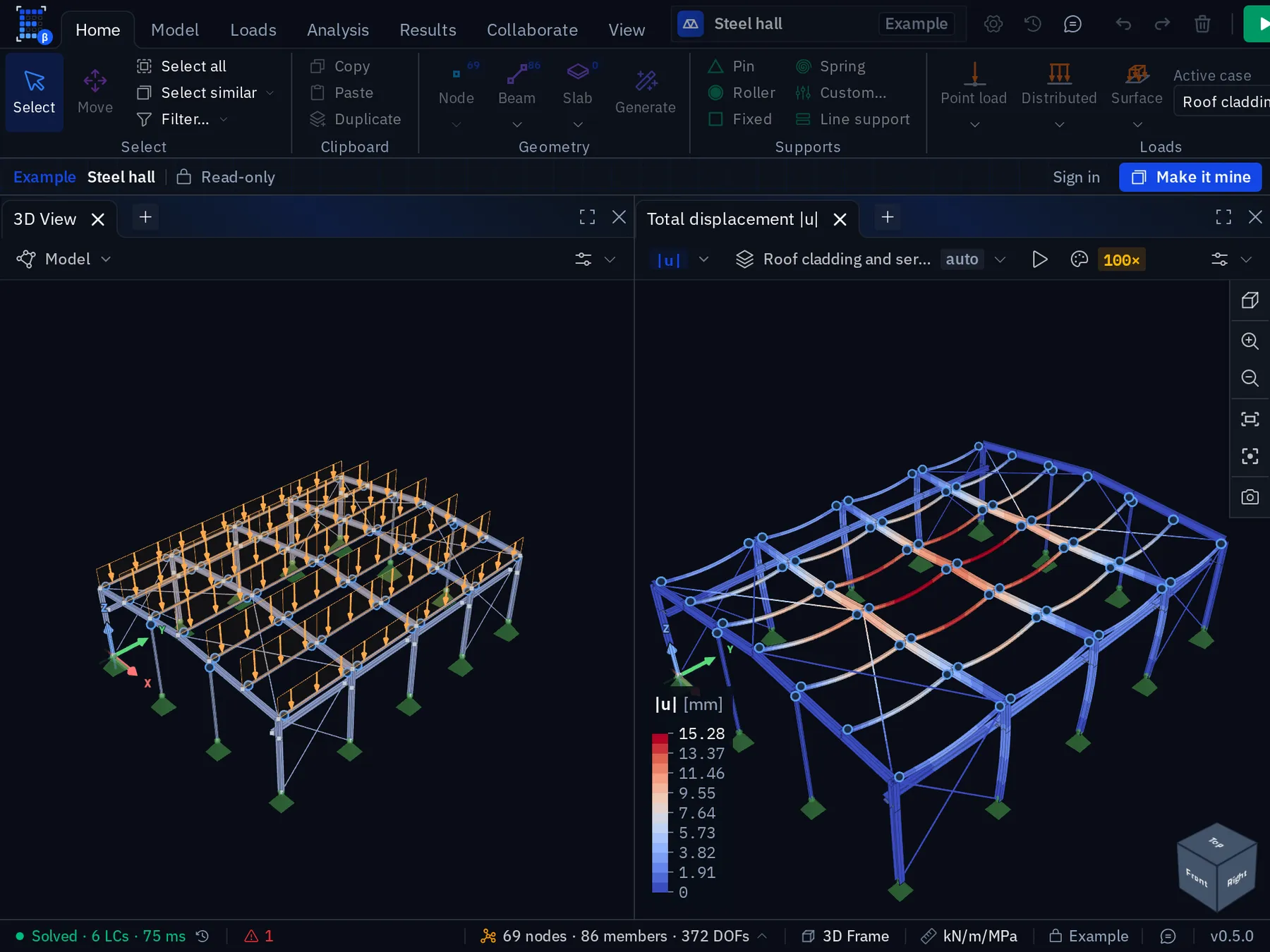
The Home tab, with the steel hall example open read-only.
- 1Geometry. Node, Beam and Slab: the three things you draw. The small counters show how many of each the model holds.
- 2Supports. Pin, Roller, Fixed and Spring presets, a Custom support for any mix of the six directions, and Line support.
- 3Loads. Point, distributed and surface loads, applied to the active load case chosen beside them.
- 4Generate. Whole structures from a few dimensions — trusses, portal frames, arches, grids, towers, domes and shells — inserted into the model. Greyed out here because an example is read-only.
- 5Make it mine. An example opens read-only. This copies it into a project on your account, ready to edit.
- 6Loads on the model. Applied loads are drawn on the members they act on, labelled, in the active load case.
- 7Result viewport. u
- 8Deformation scale. The deformed shape is exaggerated for visibility (100× here). Read displacements off the legend or a table, never off the picture.
- 9Legend. The contour scale with units. Blue is the smallest value, red the largest.
Geometry: nodes and members
Members are defined by their end points. Two members drawn to the same point share a node and are continuous: moment passes through unless you say otherwise with a release.
That single rule causes most early surprises:
| What you drew | What the model does |
|---|---|
| Rafter meeting column at the same point | Rigid moment connection |
| Rafter ending 5 mm short of the column | Nothing connects; the frame is a mechanism |
| Beam crossing another beam without a node | They pass through each other, unconnected |
| Beam split into two at a mid-point | Identical behaviour, one extra result position |
Enter coordinates, or snap to an imported drawing, and this stops being a problem. Snapping is what keeps connectivity real, not a convenience. See Drawings and snapping.
When it has already gone wrong, Model › Modify › Merge nodes is the repair: it welds every pair of nodes closer together than a tolerance you set, over the selection or the whole model, supports and loads included, and previews how many clusters it found and which members would be left with no length before it does anything. The same group has Divide beam for splitting members into equal segments where a load or a brace needs a node, Align for putting selected nodes onto one X, Y or Z coordinate, and Node grid for rounding coordinates onto a grid after a rough trace.
Centrelines, not outlines
Members are modelled along their centrelines. A 12 m span between column centrelines is longer than the clear span between column faces, so the model reports moments at the centreline where the real member has a finite support width.
For steel frames the difference is usually accepted. For heavily loaded concrete members on wide supports it is not: read the design moment at the face of the support, not at the node, and say which you used.
Sections and materials
Assign both to every member. A section carries , , , and the section moduli; a material carries , , , density and the strength used by design checks.
Define once, reuse everywhere. Changing IPE 400 to IPE 450 in the section list updates
every member using it, and nothing needs re-drawing.
Local axes
Every member has a local axis system: along the member, and in the section. Two consequences:
- Major and minor bending depend on it. A column rotated 90° about its own axis has its strong axis in the other direction, and neither the geometry nor the solve will complain.
- Loads can be applied in local or global directions. A load "downwards" on a sloping rafter means something different in each system: global for gravity, local for something acting perpendicular to the member, such as wind on a roof plane.
Display local axes while modelling anything sloping or rotated. See Sign conventions.
Supports
Six degrees of freedom per node, each free or restrained, or given a spring stiffness. The three usual idealisations:
| Idealisation | Restrains | Use when |
|---|---|---|
| Pinned | Translations only | Base plates with nominal bolts, truss nodes |
| Fixed | Translations and rotations | Members cast into a substantial foundation |
| Spring | Any, with a stiffness | Everything in between, and any soil-supported base |
Real supports are almost always between pinned and fixed. Standard practice is to choose the idealisation that is conservative for the effect you are checking — pinned for column moment and for sway, fixed for the foundation's design moment — and to state in the report which you used and why.
Releases
A release removes continuity at a member end: usually moment, occasionally axial or shear. Use them for genuinely pinned connections, expansion joints and secondary members that must not attract moment.
A checklist before loading
- Every member has a section and a material.
- Every node that should be connected actually is.
- Supports restrain all six global directions somewhere in the structure.
- Releases are deliberate, and no member is released at both ends without cause.
- Local axes point where you think they do on sloping and rotated members.
- Self-weight is included once, and only once.
Something wrong or unclear on this page? Tell us, and it gets corrected.